Overview
Use Invoice Rover to automatically send a reminder email shortly after a new invoice is created. You choose the timing, email template, and customers the rule applies to.
IMPORTANT Set up Invoice Rover before creating new invoices. It will not recognize or send New Invoice Notifications for invoices created before the rule is set up.
Video walkthrough: Watch the Invoice Rover setup video
Create the rule
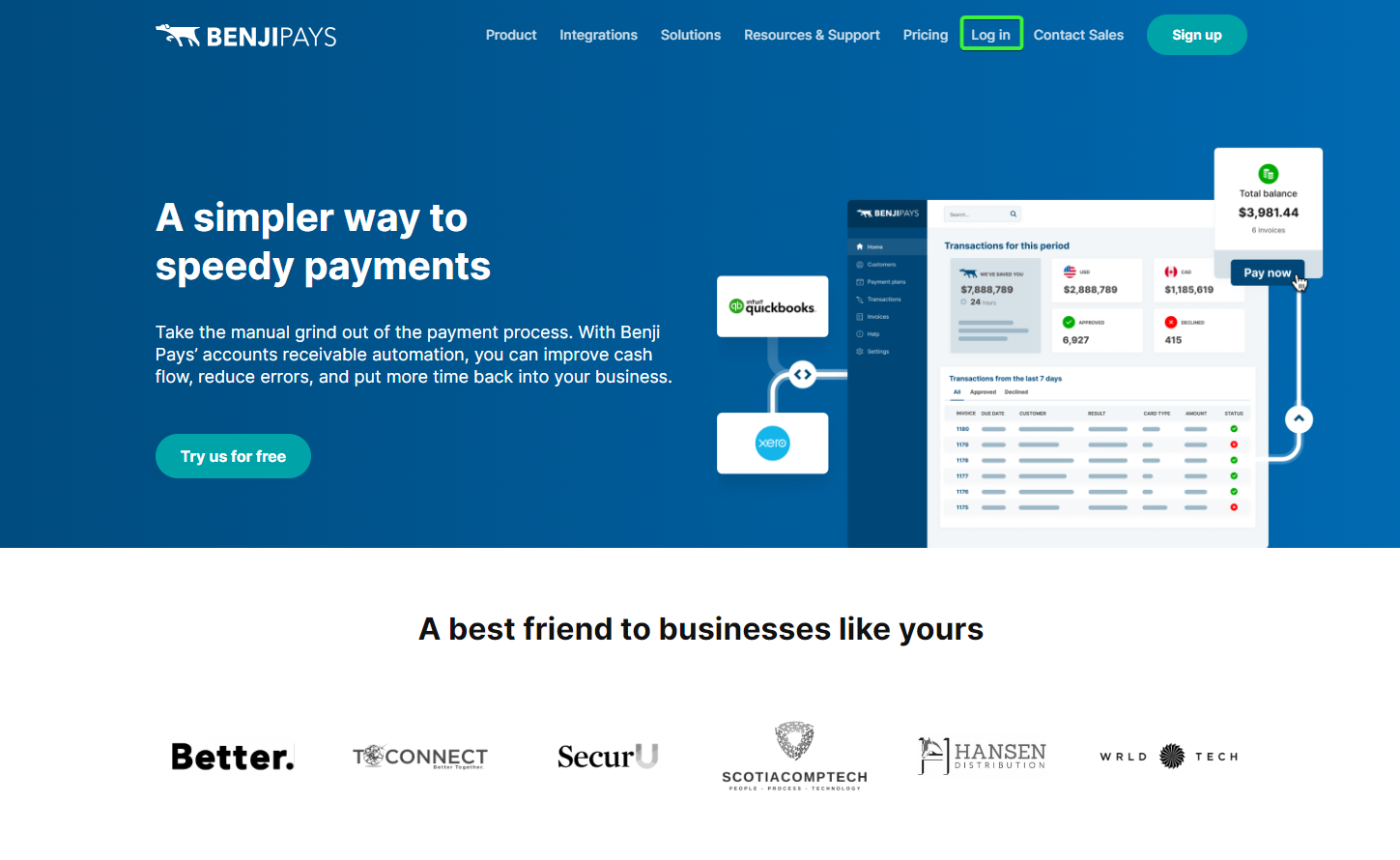
- Sign in to Benji Pays.
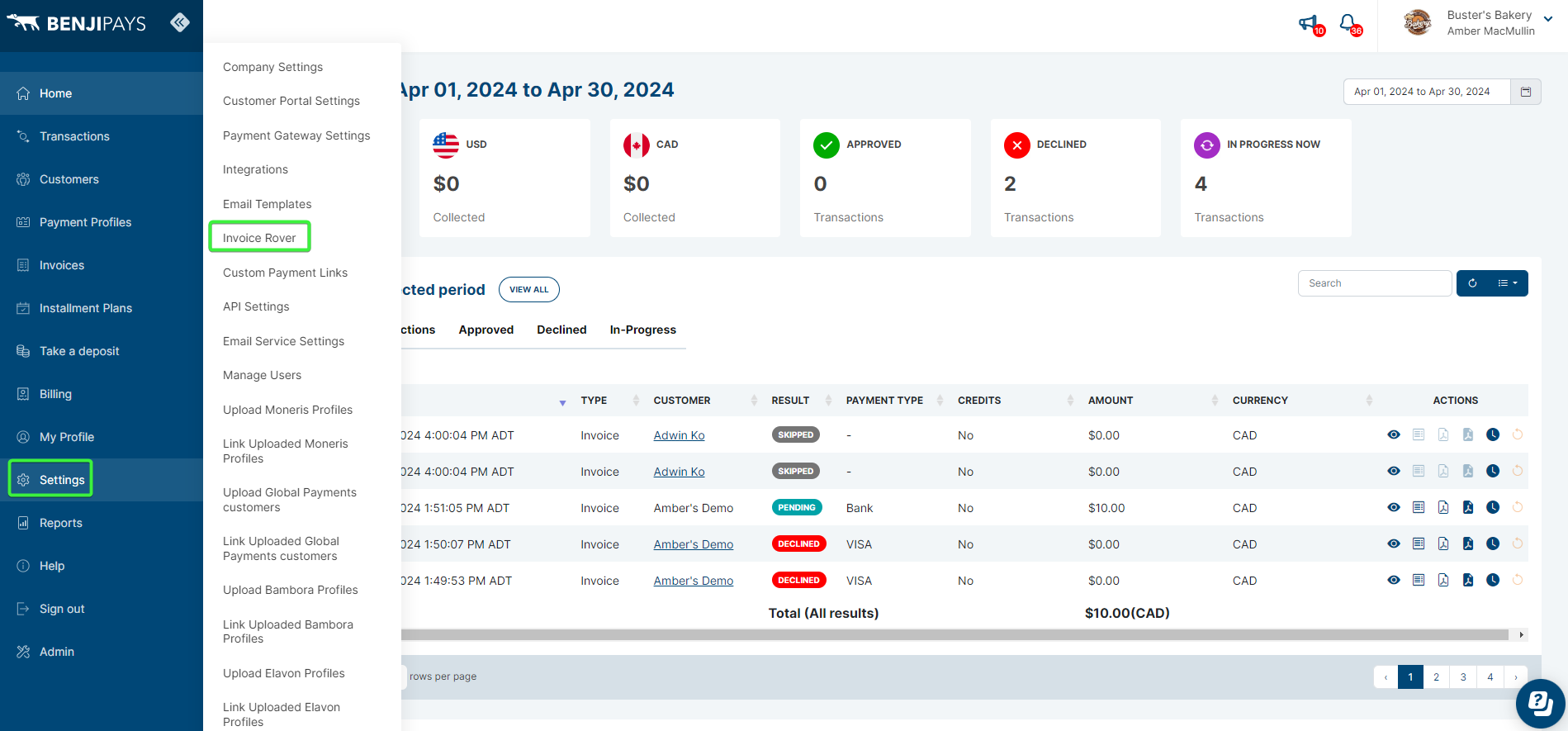
- Go to Settings > Invoice Rover.
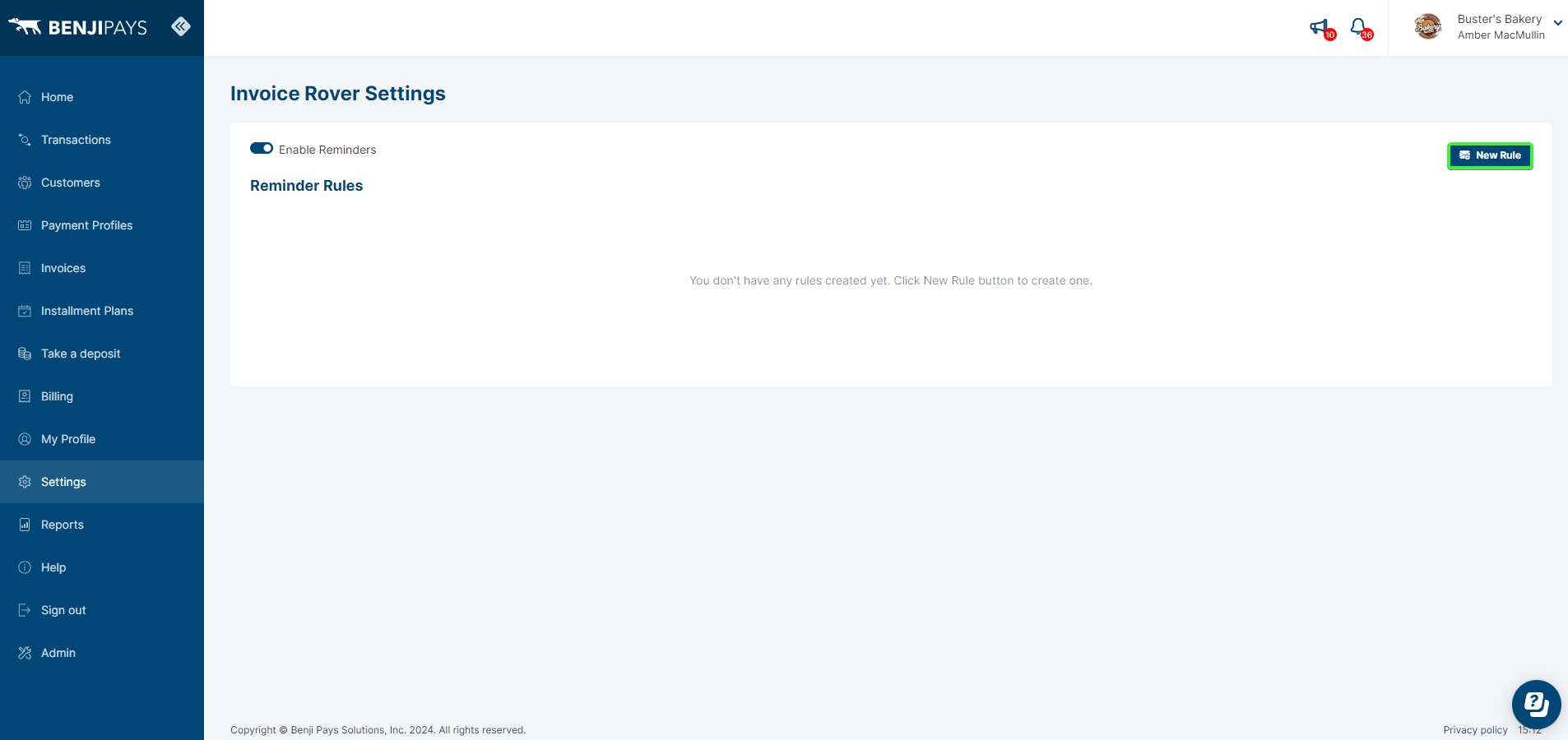
- Select New Rule.
- From the Reminder type list, select New Invoice Notification.
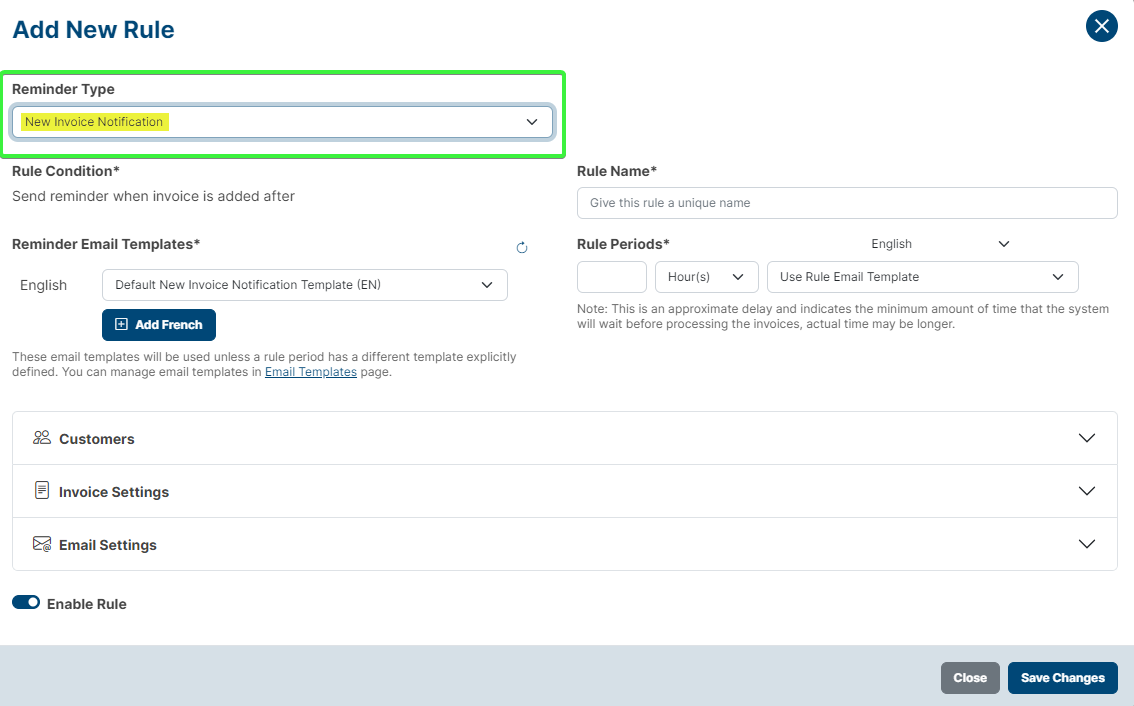
- Enter a clear name for the rule.
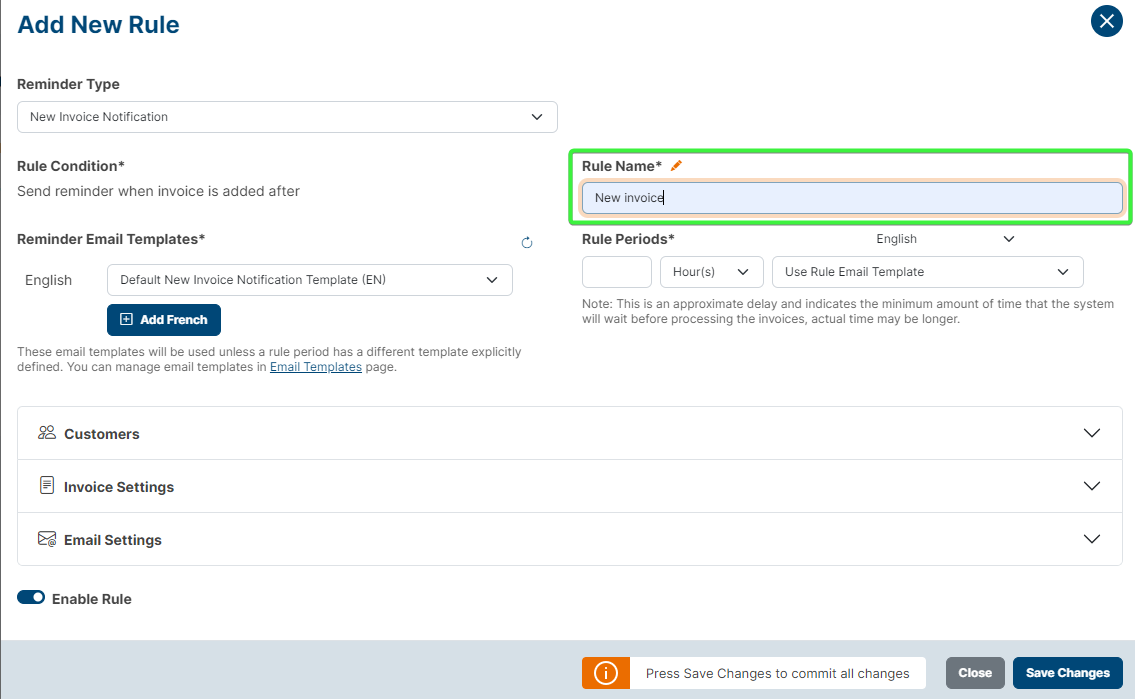
Configure the rule settings
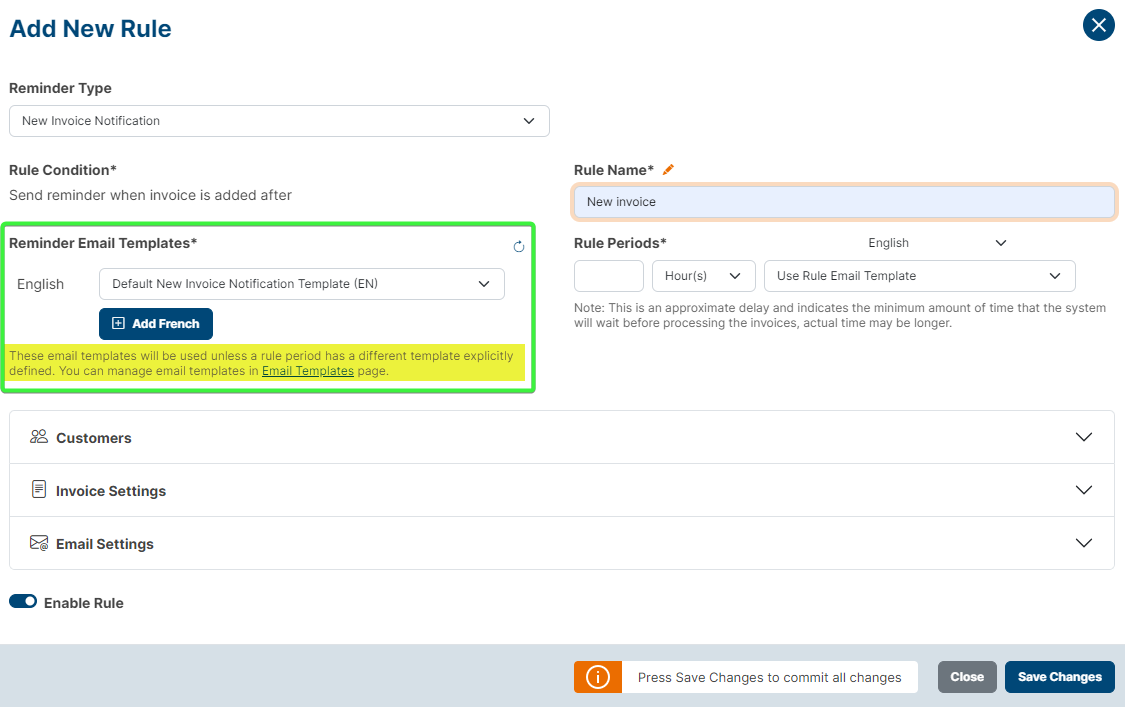
- Select the New Invoice Notification template in English or French. Select Email Templates if you need to create a template.
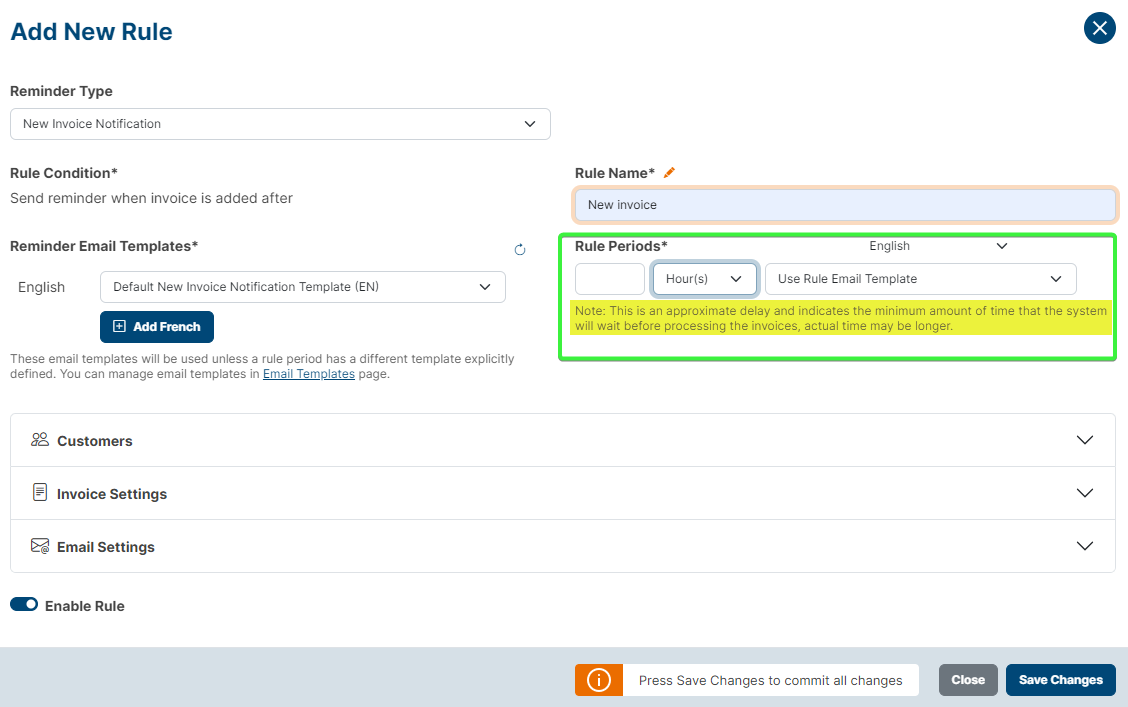
- Select the Rule period in minutes or hours, then select the template from the list. To add another period, select Add Period.IMPORTANT This is an approximate delay. The minimum delay you can select is 5 minutes. This is an approximate delay: it is the minimum time the system waits before processing invoices, and the actual time may be longer.
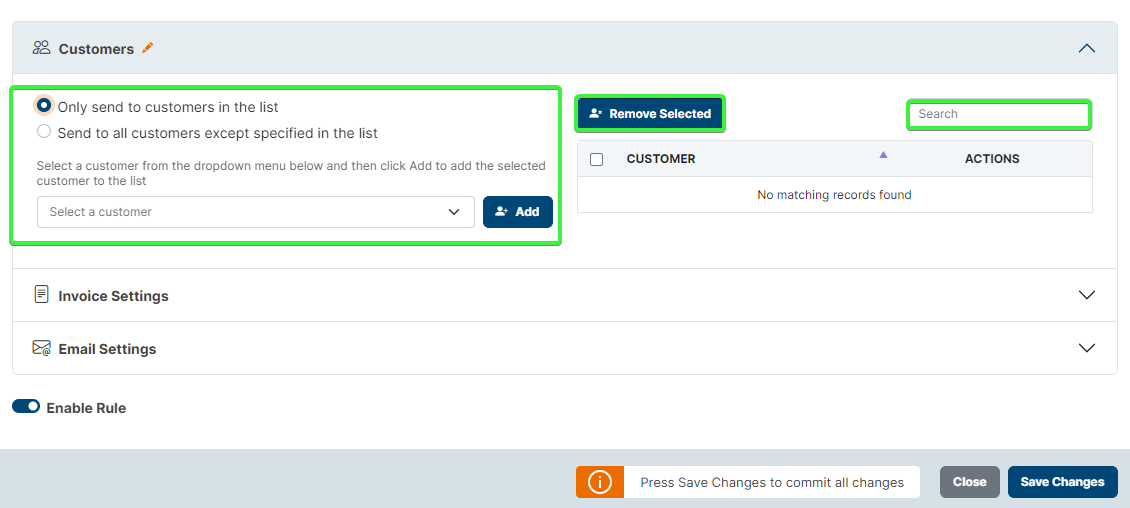
- In Customer, choose whether to send to only the listed customers or to all customers except the listed customers.
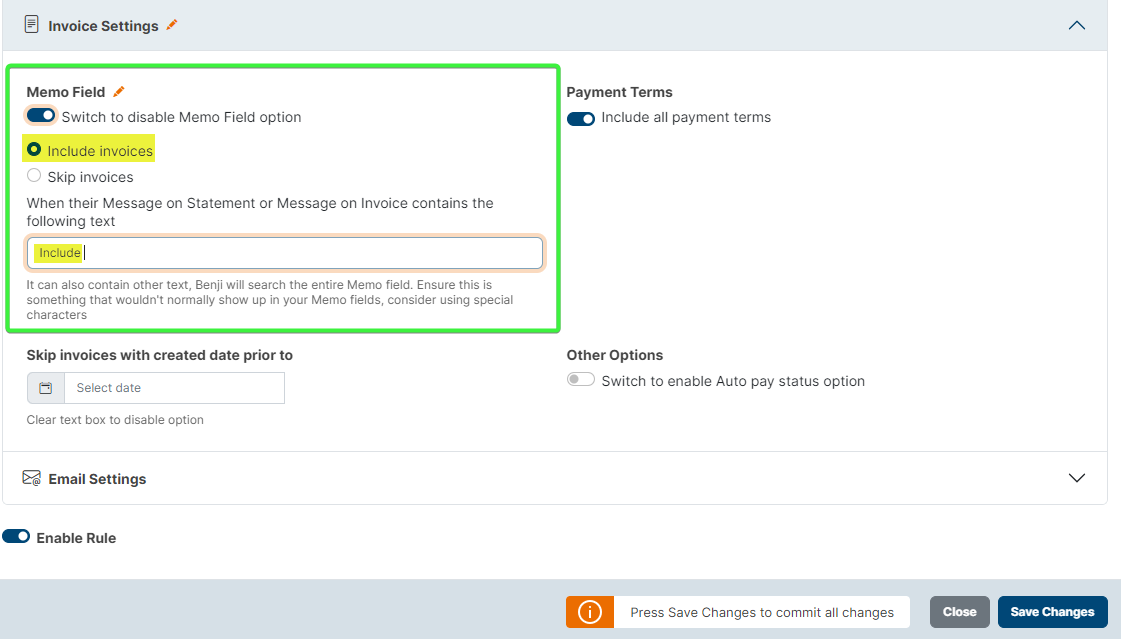
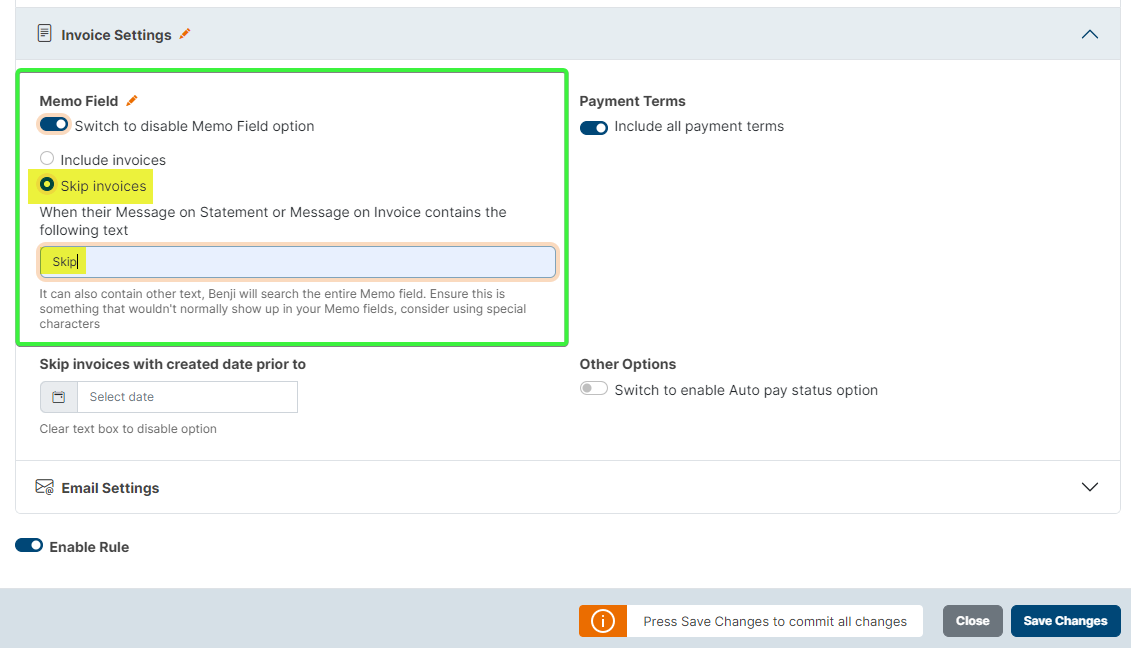
- Under Invoice settings, turn on the memo-field option if you want to include or skip invoices when the invoice or statement message contains specified text. Benji Pays searches the entire memo field, so use wording or characters that would not normally appear in other memos. You can also select a date for invoices to skip.
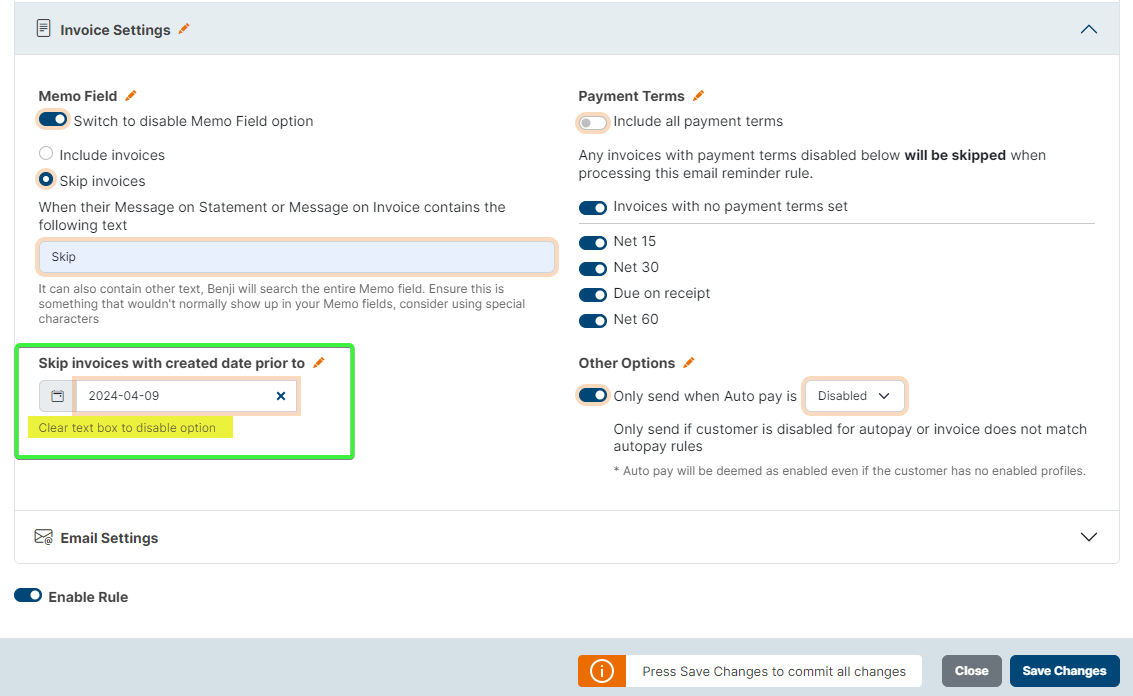
- Use Skip Invoices with created date prior to to avoid sending invoices generated before a selected date. Leave the date blank to disable this setting.
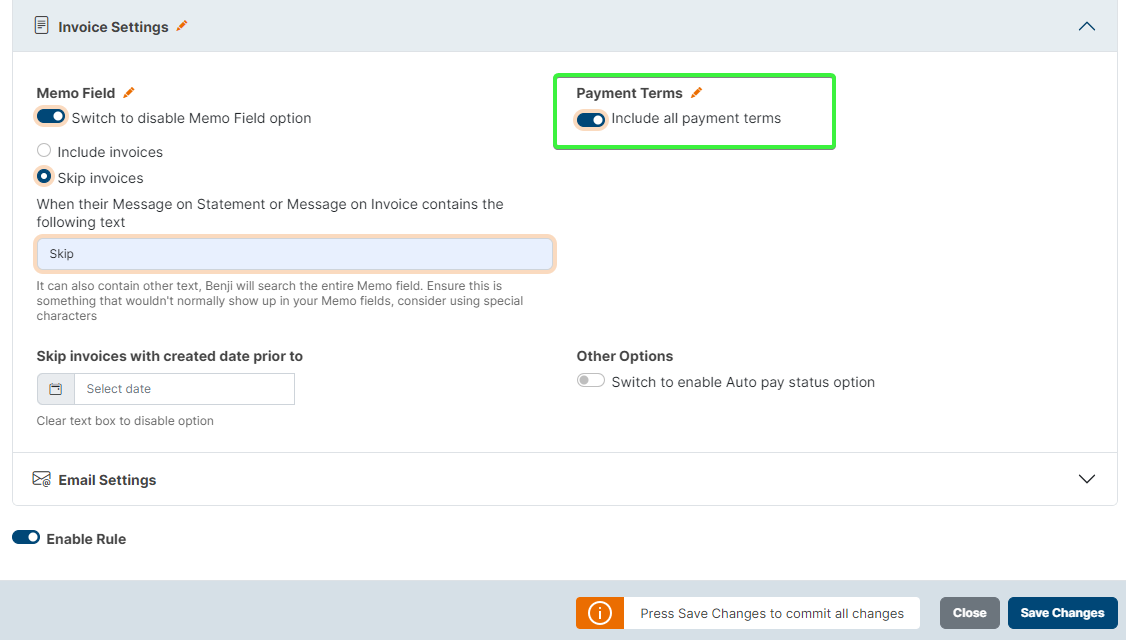
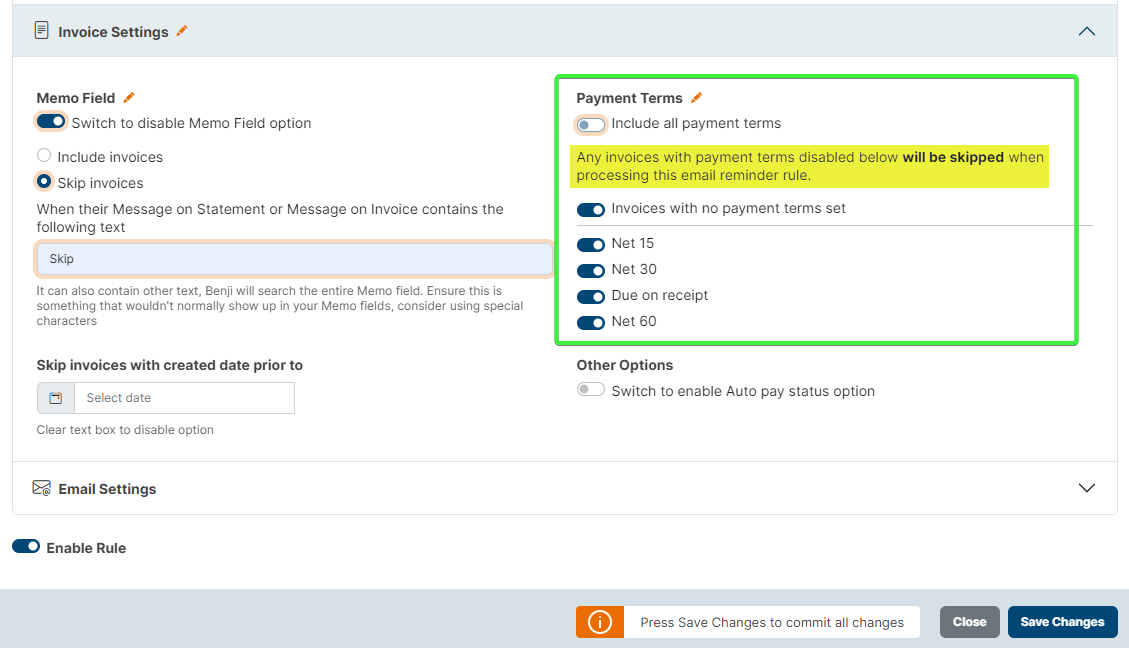
- Configure Payment terms. You can enable all terms, disable all terms, or enable and disable individual terms. Invoices with disabled payment terms are skipped.
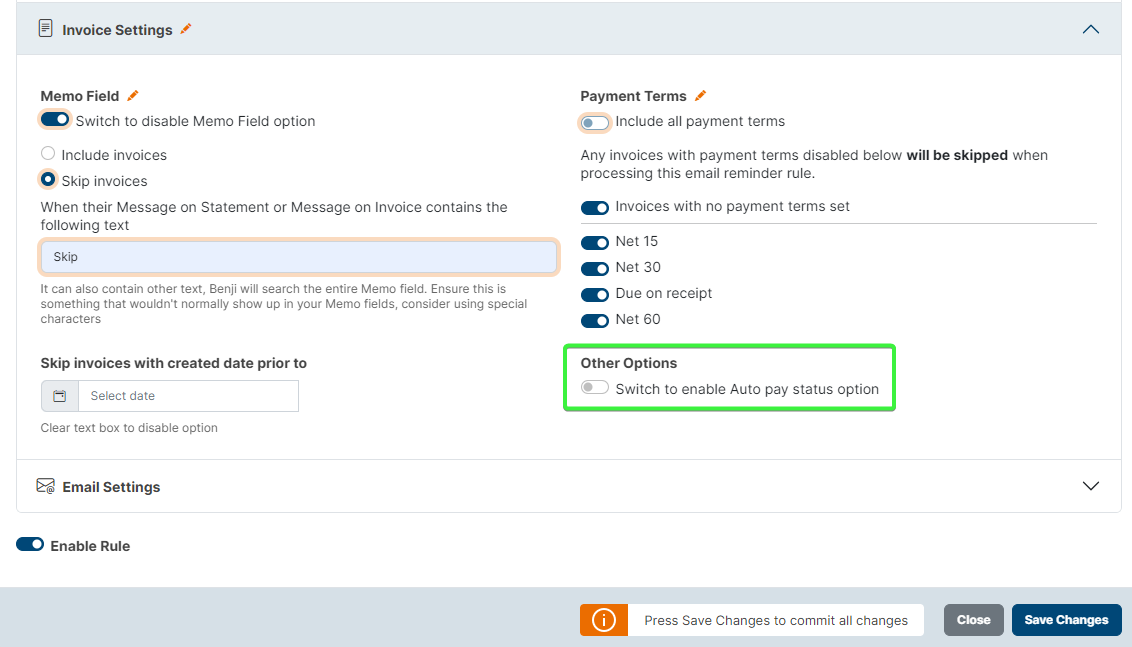
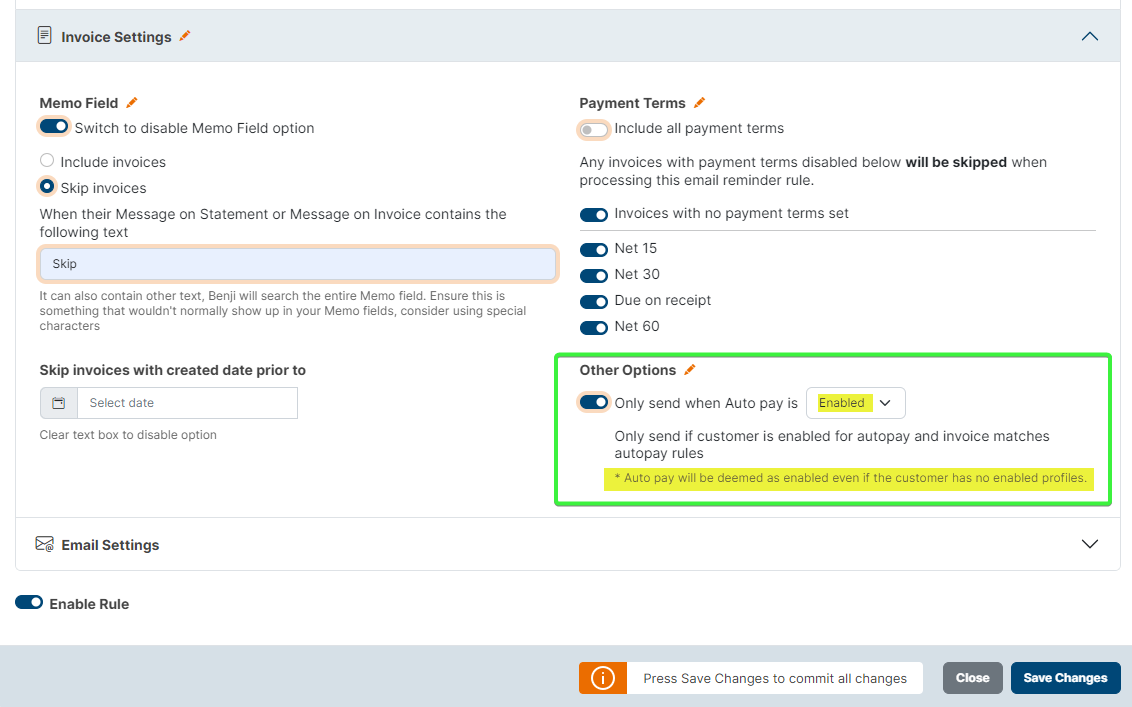
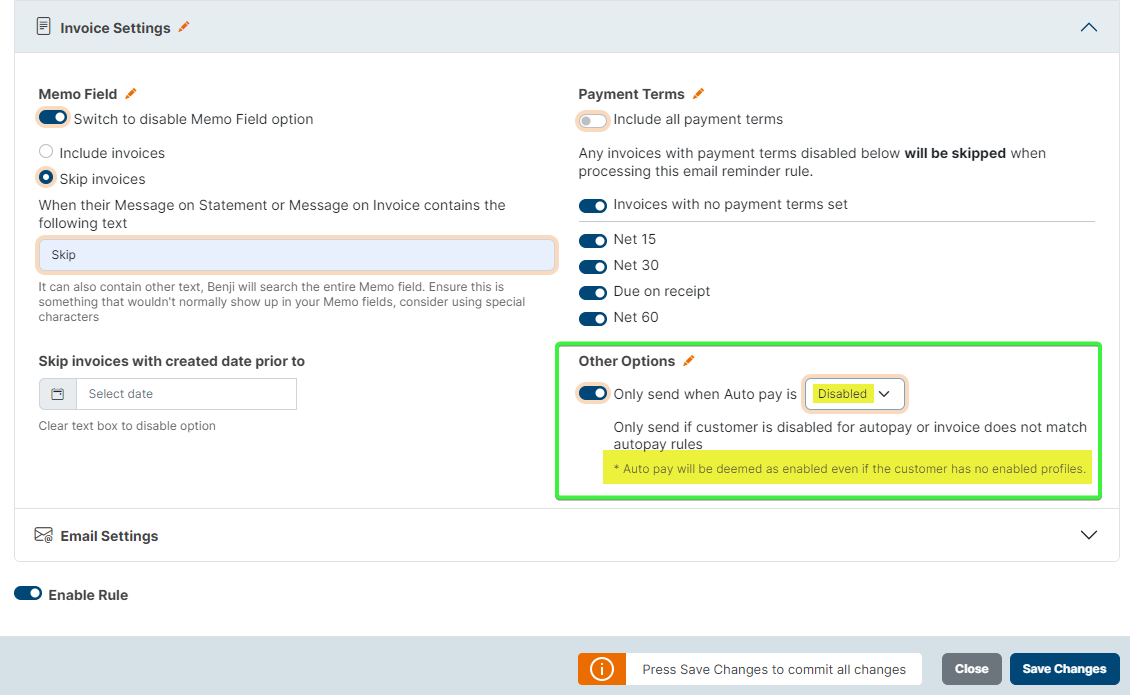
- Choose the Auto Pay statusfor the rule.
- Enabled: invoices are sent only when Auto Pay is enabled for the customer and the invoice matches the Auto Pay rules.
- Disabled: invoices are sent only when Auto Pay is disabled for the customer and the invoice matches the Auto Pay rules.
- IMPORTANT Auto Pay is considered enabled even if the customer has no enabled payment profile.
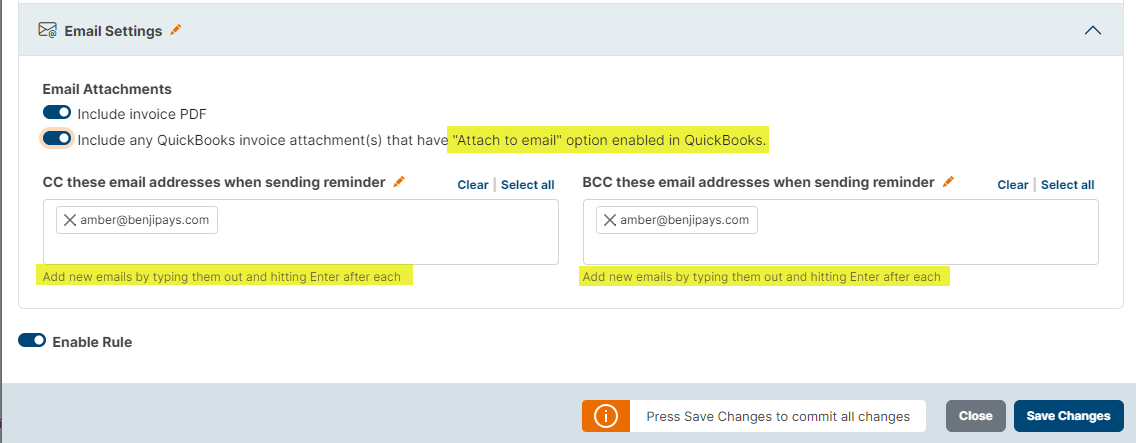
- Under Email Settings, choose whether to include the invoice PDF and QuickBooks attachments marked Attach to email. Turn a switch navy blue to enable it. Add CC or BCC recipients by entering each email address and pressing Enter.
Finish and manage the rule
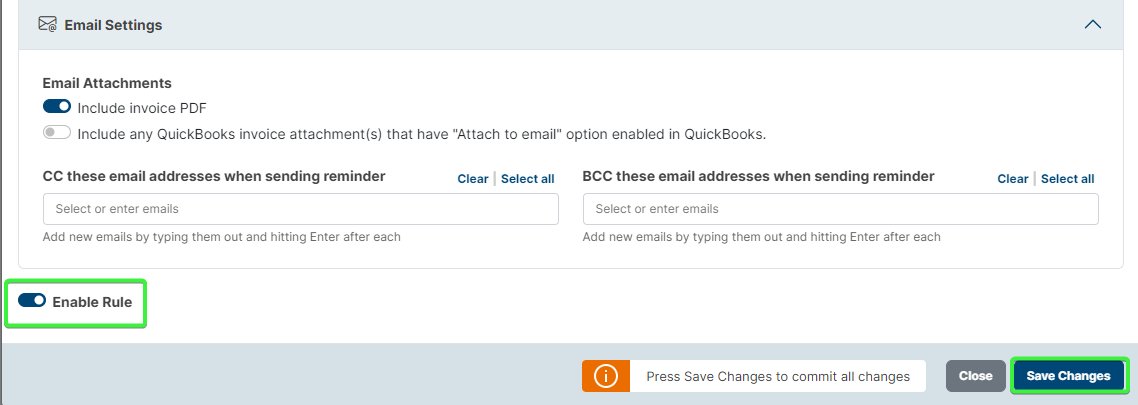
- Ensure the rule is enabled, then select Save Changes.
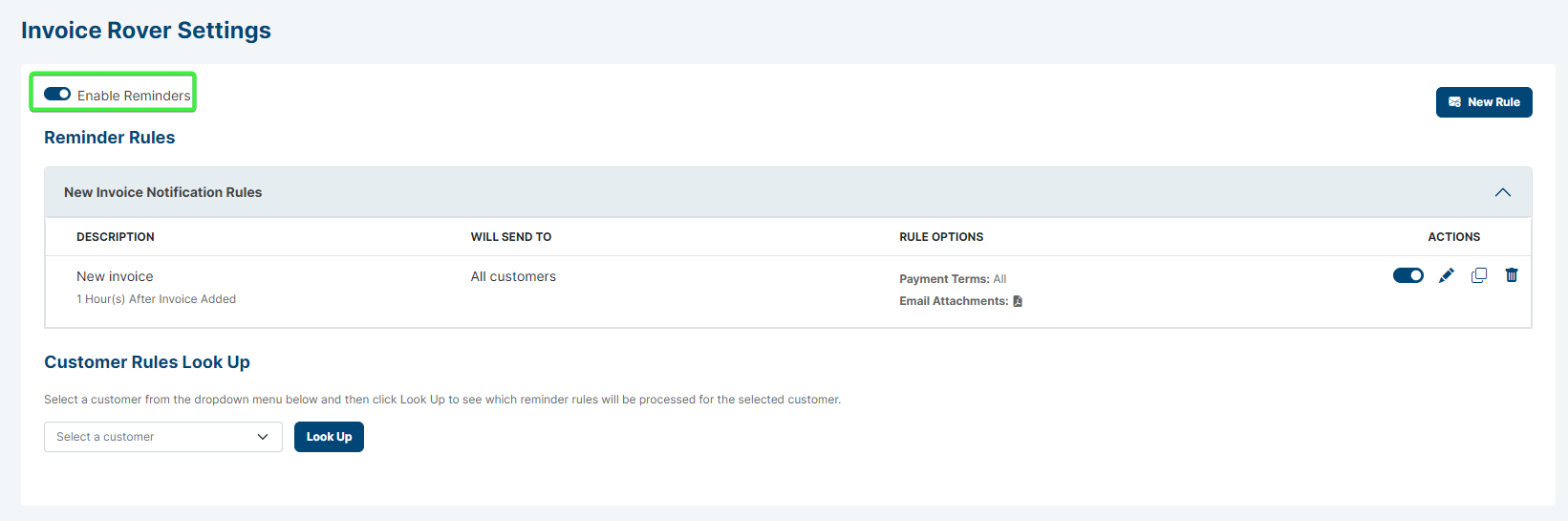
- On the Invoice Rover Settings page, turn on Enable Reminders to enable all reminders.
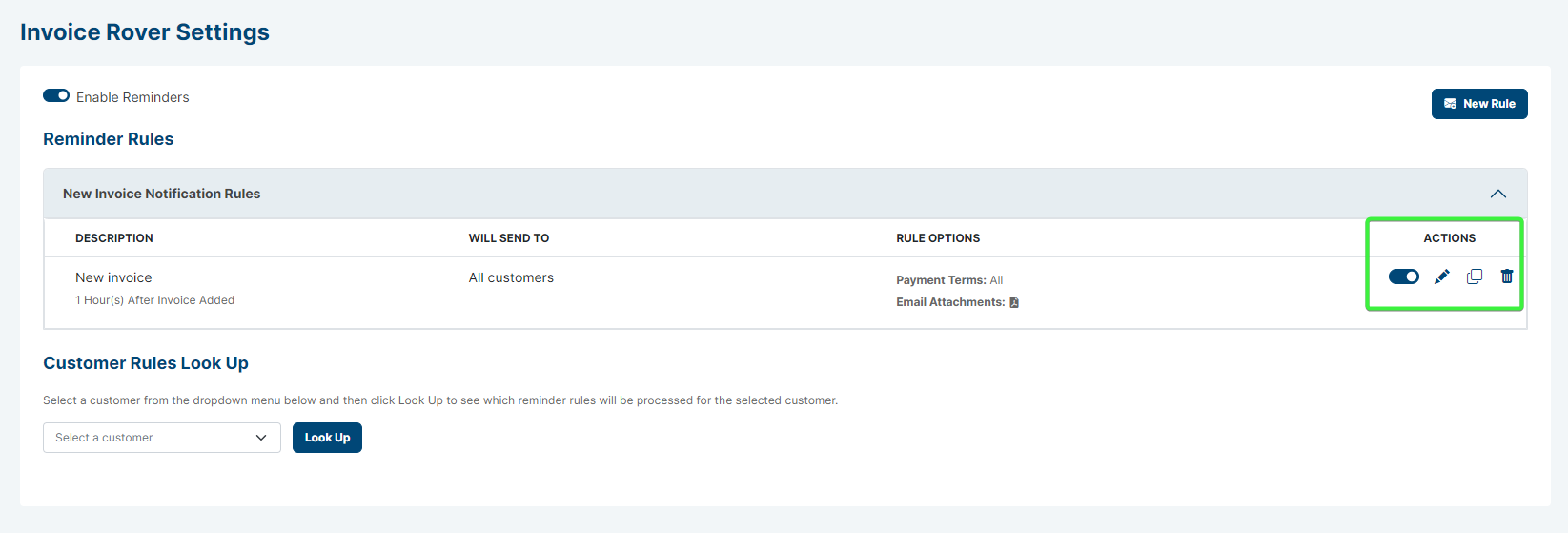
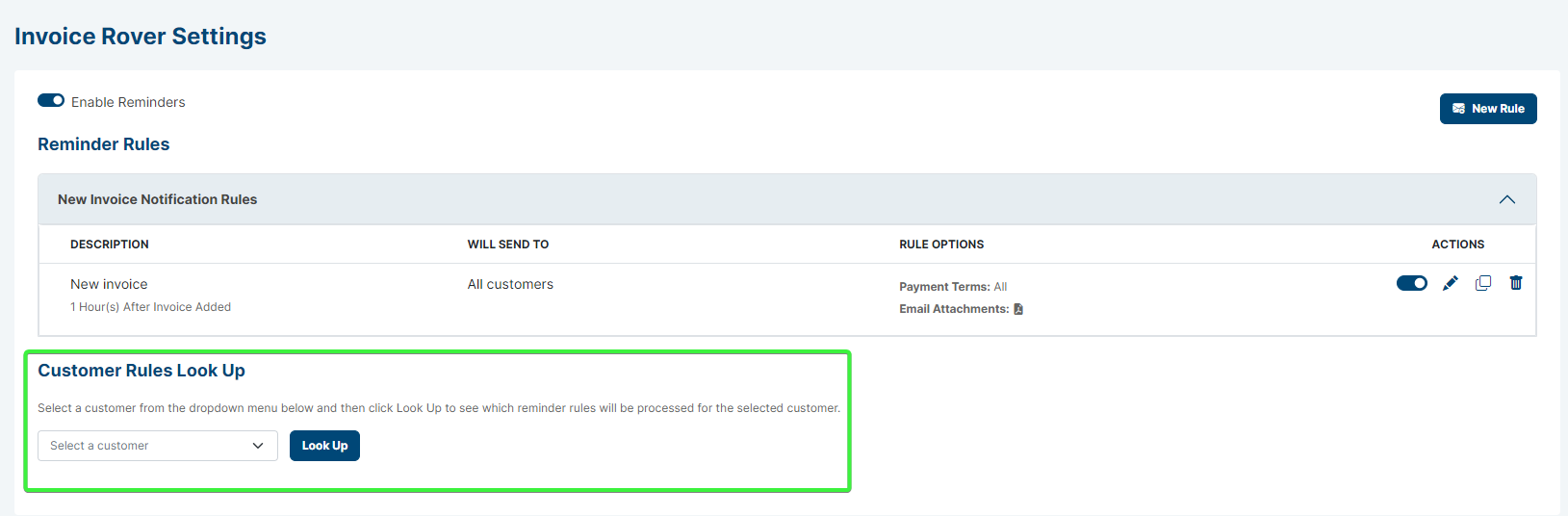
In a rule’s Actions area, use the toggle to enable or disable the rule. Select the pencil icon to edit, the paper icon to duplicate, or the trash icon to remove the rule.
Check which rules apply to a customer
In Customer Rules Look Up, select a customer from the list and select Look Up to view the reminder rules that will be processed for that customer.
Was this article helpful?
That’s Great!
Thank you for your feedback
Sorry! We couldn't be helpful
Thank you for your feedback
Feedback sent
We appreciate your effort and will try to fix the article